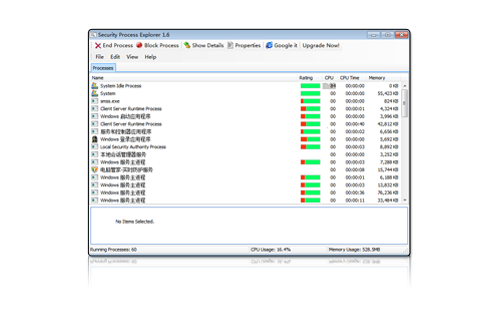
Get control over all running processes in Windows
Security Process Explorer

-
Give you detailed information about each and every process.
Indicate whether a process is safe or not.
Allow you to terminate process with a single click.
Let you block any unwanted processes or malware.
Simple and user friendly interface.
- Download Now1.6 for Windows | Update: June 1, 2011
Security Process Explorer is an enhanced task manager, that provides advanced information about programs and processes running on the computer. It displays all the standard information, including file name, directory path, description, CPU usage, as well as a unique security risk rating. This rating is conclusive and relies on the expertise of the user to determine whether the process should be terminated or removed.
What is Task Manager?
Task Manager is a program that shows you the information about the programs, services and processes currently running on your computer. With Task Manager, you can easily monitor your computer's performance and close the processes and programs that are not responding, and alter the processes priority. The most common way to access Task Manager is to press the buttons Ctrl-Alt-Delete.
If your computer is connected to a network, you can view all the information about network status and see how your network is working through Task Manager. Providing that more than one person is connected to your PC, you can also view who is connected and what they are working on.
What can Security Process Explorer do for you?
Security Process Explorer allows you to monitor CPU and memory usage graphs per process, view detailed processes information (with descriptions), stop and start new processes, set priorities and much more. You can easily find and remove unnecessary background processes as well as assigning more resources to demanding processes like games, realtime multimedia applications and cd writing softwares.
On Security Process Explorer's user-friendly interface, you can see many powerful functions that it offers. You can view the connection between different processes, block or end process, explore in-depth details on a certain process, and even look for a particular process on the Web that Security Process Explorer takes you to a proprietary page to view more. This free process explorer shows you detailed information about running processes in an intuitive tree format that includes not only process names, but also program icons and other data, such as description, rating bar, memory, and CPU time. If you click any process in the top window, you will see the product, company and more information on the selected process in the bottom window.
Replacing Task Manager
If you click File > Replace Task Manager, Security Process Explorer integrates itself into your system so that you can access the module by pressing Ctrl+Alt+Del, or by right clicking on an empty part of the taskbar and selecting Task Manager. If you want to use the Windows Task Manager again, simply select the same menu item to remove the check mark in front of it.
In addition, the menu bar at the top of the Process Manager window provides you with extra functions. Click File > New Tasks(Run...) to open the Windows Run dialog, which you can use to start a new application or open a file.
Click File > Exit Windows to shut down or restart the computer so that new settings can take effect. If you have selected a process in the list, you can click Edit > Set Process Priority to specify how much processing power Windows should assign to this process.
- Products
- Newsletter
Keep up-to-date with news about Glary Utilities
Your email:
- Testimonials
"It lets you view the processes you have running on your computer. If you find an application you deem unnecessary, or Heaven forbid, unwanted such as spyware or adware it's easy to block the program from running. If your not sure about a program click on the more info tab and it will take you to glarysoft's database where it will give you more information about that running program. It also provides you with a risk factor for each running program. If you inadvertantly block an application your computer needs to run properly just go to the edit tab and unblock that program. It's that easy!"
- ritchie58
download.com
- Awards