
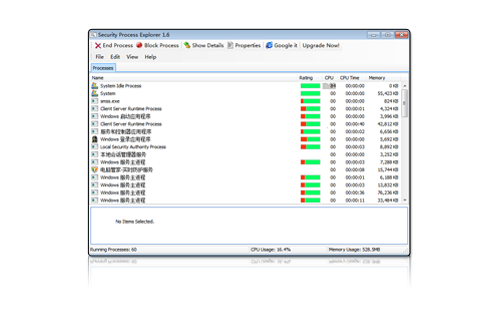
An enhanced task manager that
provides advanced information about programs and processes running on the computer.
Give you detailed information about each and every process.
Indicate whether a process is safe or not.
Allow you to terminate process with a single click.
Let you block any unwanted processes or malware.
Simple and user-friendly interface.
OS: Windows 11, 10, 8, 7, 2000, XP, Vista. 32/64bit version.
It displays all the standard information, including file name, directory path, description, CPU usage, as well as a unique security risk rating.
The program interface is logically structured and based on the default task manager and the process of replacing it is fast so that we quickly forget having ever used a default tool.
Security Process Explorer allows you to monitor CPU and memory usage graphs per process, view detailed processes information (with descriptions), stop and start new processes, set priorities and much more.
This is the case of Security Process Explorer, a full featured task manager created by Glarysoft. This tool analyzes your system and creates a list with all the currently active applications and processes, each one of them complemented with extra data such as CPU and memory usage, threads, priority and also a rating according to the level of trust given by this program's users themselves.
"Using Security Process Explorer you can easily find and remove unnecessary background processes. As well, you can assign more resources to demanding processes like games, real-time multimedia applications and CD writing software, where ecessary."
Mullins
Bill Mullins
Softpedia guarantees that Security Process Explorer (formerly Glarysoft Process Manager) 1.6 is 100% CLEAN, which means it does not contain any form of malware, including spyware,viruses, trojans and backdoors.

 We've analyzed the latest version of Security Process Explorer with 30 antivirus engines and found that it's virus-free.
Copyright © 2016 Glarysoft. All rights reserved.
