
How Modern Storage Impacts DIY Data Recovery (2026)
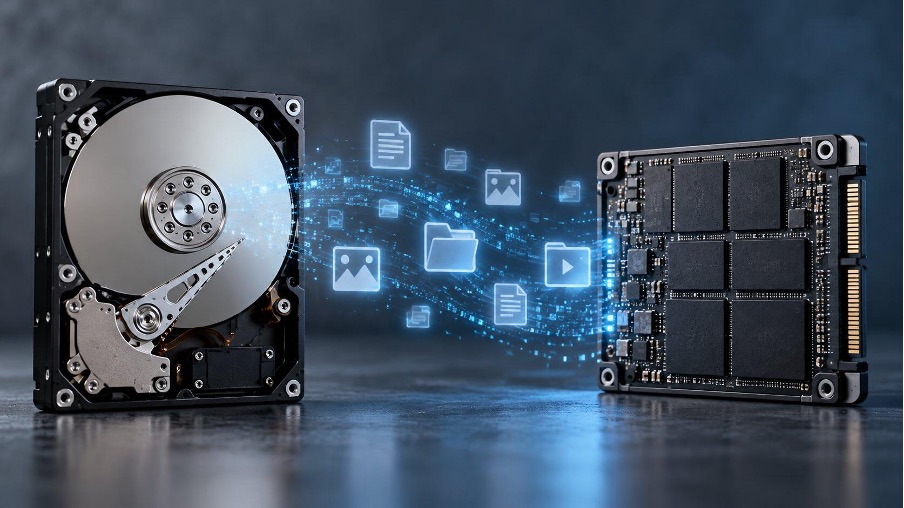
You've deleted an important file, and now you're looking for a way to get it back. Most DIY data recovery guides suggest scanning the drive with recovery software. But whether that works depends heavily on the storage technology inside your computer.
Modern SSDs handle deleted data differently from traditional hard drives, and even newer HDDs have their own complications. Before attempting recovery, it helps to understand what your drive actually does after data loss.
Why Storage Technology Matters for Data Recovery
Deleting a file doesn't always mean its contents disappear immediately.
On a traditional hard disk drive (HDD), deletion usually removes the file's reference from the file system and marks its storage space as available. The underlying data remains on the magnetic platters until something else overwrites those sectors. Recovery software can search for those remnants and reconstruct the file.
Solid-state drives (SSDs) introduce another layer. Instead of writing directly to fixed physical locations, they use a controller to manage NAND flash memory. The controller decides where data is stored and which blocks can be cleared for reuse.
SSD can make deleted information inaccessible without waiting for another file to overwrite it. The same recovery method may therefore produce very different results on two otherwise healthy drives.
HDD vs. SSD: What Changes for DIY Recovery
HDD data recovery is generally more predictable after accidental deletion. If you stop using the disk before its free space gets reused, recovery software may still find complete files, including their original names and folder locations.
SSD data recovery is less straightforward. SSD controllers use wear leveling to distribute writes across memory cells and garbage collection to reclaim blocks. These processes improve performance and durability but complicate attempts to retrieve deleted data.
There's also an exception worth knowing about on the HDD side. Some high-capacity hard drives use Shingled Magnetic Recording (SMR), which stores tracks in overlapping bands. On drive-managed SMR models, subsequent writes can trigger internal data relocation and band rewrites, making recovery less predictable than on conventional magnetic recording (CMR) drives.
Not sure which type you have? In Windows, search for Defragment and Optimize Drives and check the Media type column. It identifies HDDs and SSDs, although it won't tell you whether an HDD uses SMR. Don't click Optimize while attempting recovery.
How TRIM Can Affect SSD Data Recovery
One of the biggest obstacles to data recovery from SSD storage is a command called TRIM. When you delete a file, the operating system can send a TRIM command telling the SSD which logical blocks are no longer needed. The controller can then reclaim the corresponding flash memory through garbage collection.
TRIM doesn't necessarily erase every affected memory cell immediately. However, the SSD may already report those blocks as empty, even before physical erasure finishes. Once their contents become inaccessible, ordinary recovery software cannot retrieve them.
TRIM doesn't work identically on every storage setup. Some USB bridges don't pass these commands through, and behavior varies across operating systems and file systems. Losing a partition or experiencing file-system corruption also doesn't necessarily trigger the same process as deleting individual files.
On Windows, you can check the operating system's TRIM setting by opening Command Prompt as administrator and entering:
fsutil behavior query DisableDeleteNotify
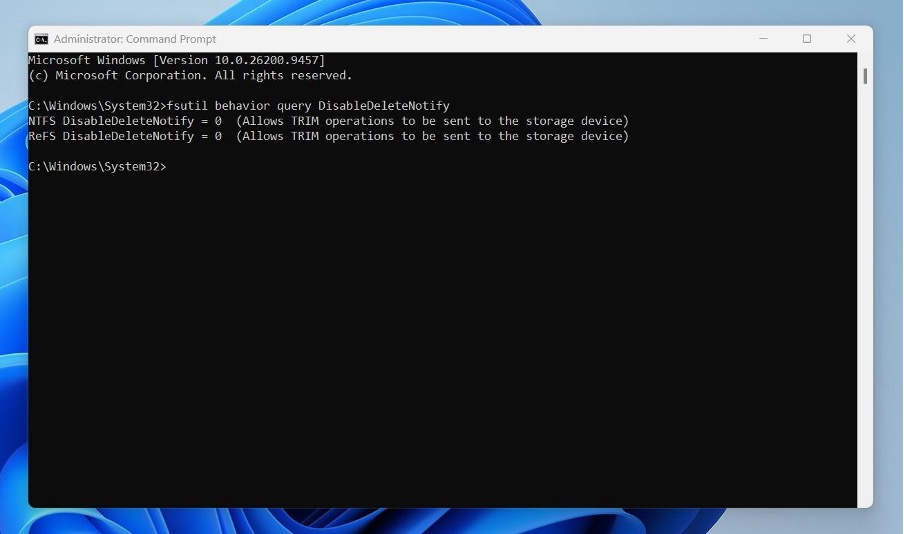
A result of 0 means delete notifications are enabled; 1 means they're disabled. This checks the Windows setting, not whether TRIM actually reached a particular SSD or erased a specific file.
Windows also performs scheduled drive optimization weekly by default, which includes TRIM operations for SSDs. That's another reason not to delay recovery, although TRIM can occur long before the scheduled optimization runs.
Other Factors That Affect Data Recovery Chances
Storage technology isn't the only complication. Modern computers may encrypt their storage automatically. Some Windows 11 devices enable device encryption during setup, while Apple silicon Macs encrypt internal storage even without FileVault enabled. Many laptops also have soldered storage that cannot simply be removed and connected to another computer. Without the necessary credentials or hardware access, traditional DIY methods may not work at all.
Several other factors determine whether recovery is possible:
● Overwriting: Once new data replaces the original contents, recovery software cannot reconstruct those overwritten bytes.
● Continued use: Downloads, updates, and background processes can reuse space previously occupied by deleted files.
● File system: NTFS may preserve useful file records, while FAT/exFAT recovery can be harder when information about fragmented files is lost.
● File size and fragmentation: Large files spread across multiple locations are harder to reconstruct if even one part is missing.
● Drive condition: Bad sectors, controller failures, and unstable connections can prevent access to otherwise recoverable data.
For a more detailed explanation, see these variables that impact data recovery chances.
What to Do After Data Loss
Your next actions can matter as much as the original cause of data loss. The priority is to preserve what's still accessible.
- Stop using the affected drive. Avoid downloads, installations, and saving new files. If the missing data was on an external drive, stop accessing it.
- Power down when appropriate. If the files were deleted from your system drive, shutting down can prevent further activity. This is especially important with SSDs, where background cleanup may continue while powered.
- Locate your encryption credentials. Check that you have the necessary BitLocker recovery key, FileVault credentials, or other passwords before attempting to access the drive elsewhere.
- Work from a disk image when practical. For a healthy, readable drive, a sector-by-sector image lets you scan a copy instead of repeatedly accessing the original. If the drive is unstable or the SSD contains irreplaceable data, consider professional advice before attempting a lengthy scan.
- Save recovered files elsewhere. Always use a different physical drive as the recovery destination to avoid overwriting information that hasn't been recovered yet.
Don't run CHKDSK, fsck, First Aid repairs, formatting, or drive optimization before recovering the files. Repairing a file system and recovering lost data are different tasks. Repair utilities can modify the metadata that recovery software needs.
When DIY Data Recovery Makes Sense
Recovery software remains useful when the problem is logical rather than physical. Good candidates include accidentally deleted files on an HDD that hasn't been used since, missing partitions, and damaged file-system structures on drives that still respond normally. SSD recovery may also work when TRIM wasn't issued, or when the problem involves metadata rather than erased file contents.
But software cannot repair a damaged read/write head or restore flash memory that has already been erased.
If a hard drive clicks repeatedly, disconnects, or reports an incorrect capacity, stop scanning it. The same applies to SSDs with controller failures or drives that repeatedly disappear from the system.
Professional recovery services can address some hardware and firmware failures, but they cannot guarantee results. Even a specialist cannot reconstruct data that has been completely overwritten or securely erased.
Before attempting either approach, check whether a backup, cloud version history, or previously synced copy already contains the missing files.
FAQ
Is DIY data recovery possible on an SSD?
Sometimes. Recovery depends on whether the original data remains accessible. If TRIM hasn't invalidated the relevant blocks, software may recover deleted files. Lost partitions and certain file-system problems can also be recoverable.
Does TRIM affect deleted files?
Yes. SSD TRIM tells the drive which blocks the operating system no longer needs. Once the controller makes their previous contents inaccessible, conventional recovery software cannot retrieve them.
Is HDD recovery easier than SSD recovery?
Usually, for accidental deletion. Traditional HDDs generally retain deleted data until the affected sectors are overwritten. SSDs have additional mechanisms that can invalidate data sooner. However, HDD data recovery still depends on drive health, subsequent writes, and the storage technology used.
Final Thoughts
Modern storage hasn't made DIY recovery obsolete, but it has changed when recovery is realistic. A healthy HDD with recently deleted files presents a different situation from an SSD that has already processed TRIM.
Identify your storage type, stop unnecessary activity, and check for encryption before choosing a recovery method. The sooner you preserve the remaining data, the fewer opportunities there are to lose it permanently.
