
Glary Utilities
Get Glarysoft Utilities to stimulate PC potential, free up space,
always keep your system clean and smart.
 Download

Glary Utilities
|
Clean and optimize your computer for freeSpeed up and protect privacy with only one clickTrustworthy tune-up software |
Download
No Adware, No Bundle, No malware |
Registry Repair is a powerful registry cleaning tool that performs comprehensive and deep analysis for Windows Registry, scans the computer, cleans registry junks and fixes registry errors on invalid entries or references that can cause computer freezing, system crashes, instability, blue screen. Here let’s see how to repair Windows Registry Free to improve system performance and stability.
Interface Overview
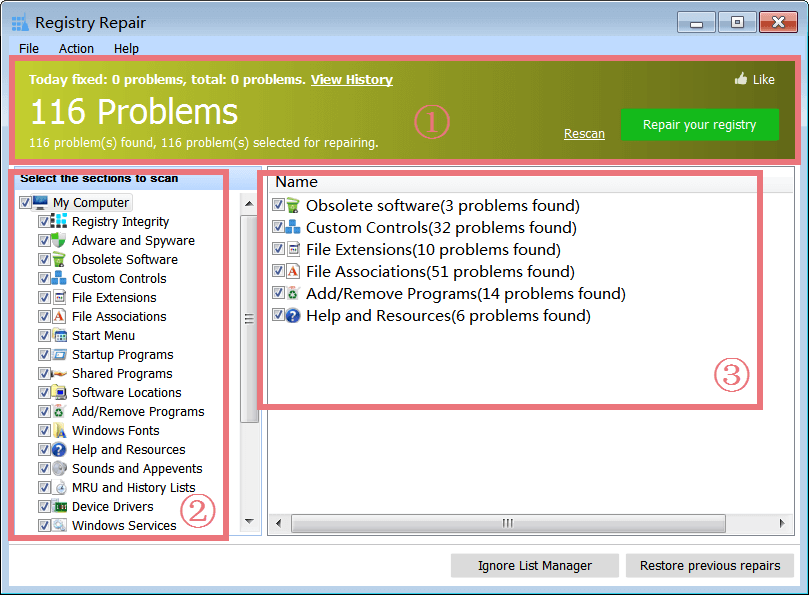
1. The Above Yellow Area: shows the number of problems found and allows you to rescan registry for problems, as well as repair your registry on the invalid entries or references.
2. Left-hand Side Button: allows you to select the needed sections to scan.
3. Right-hand Side box: displays the summary of problems found. For the one you do not want to repair, do not check it. Just choose the right one you need to repair, and click "Repair your registry" in the upper box of the main window.
Select the Sections to Scan Registry for Problems
There are two ways to find the place to setup 1-Click Maintenance. You can find Options button on 1-Click Maintenance page, click Options, and then setup it in a new pop-up window.
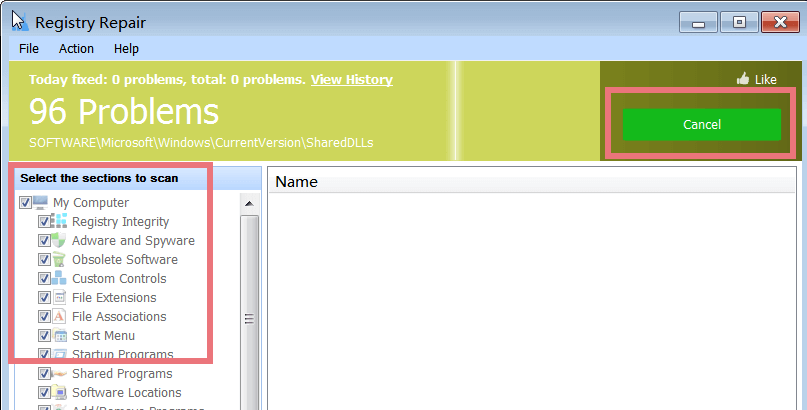
Registry Repair scans the entire Windows Registry deeply and provides a comprehensive analysis. It detects all the registry problems caused by invalid Windows registries, obsolete software entries and dead file extensions. All you need to do is select registry sections that you want to scan. As soon as you start Register Repair, it will scan the registry for problems. You can cancel the scanning process by pressing the "Cancel" button. All these steps will be finished within one minute and the Scan results will be displayed on this page.
Remove Invalid Registry Entries
Part of Windows Registry will become invalid but still accumulate on your system, such as remnants of removed software and orphaned shortcuts to deleted folders. These invalid registry junks slows down computer performance and causes system freezing. Registry Repair scans Window registry and detects all these invalid registry entries. It does registry cleanup to lighten your Windows registry and speeds up your computer performance at peak. By default, all entries found are marked for deletion, since all found entries can be safely removed. If you are an expert, you can select those that you want to delete by check-marking them.
Fix Registry Errors and Exclude an Entry
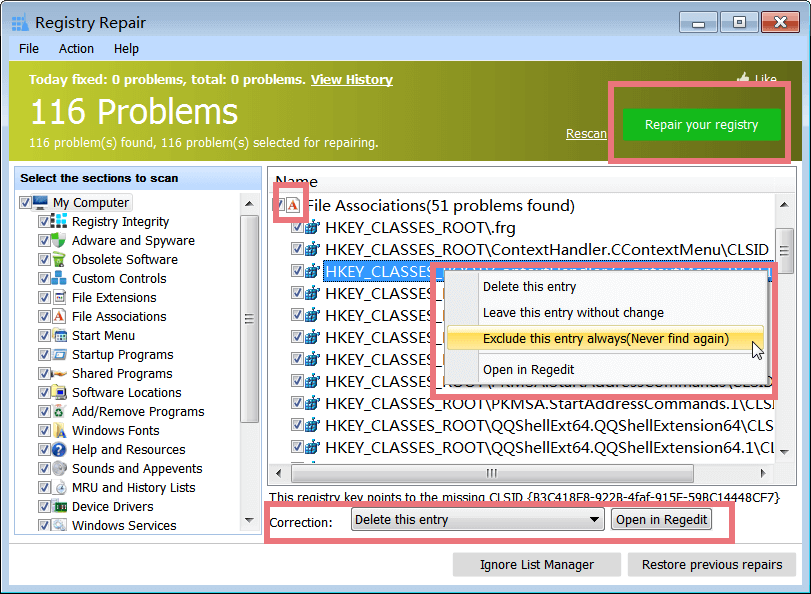
Incorrect operations may cause damaged registry entries and therein pop-up PC errors, blue screens, and application failures. Registry Repair scans your computer and lists detected registry errors. You can delete a registry error, or leave it without change, or exclude it in future registry cleanup and repairs. To repair registry errors, a click on the "Repair your registry" button is enough. This registry cleaning tool will help you fix all these registry errors to keep your Windows Registry error-free.
Ignore List Manager
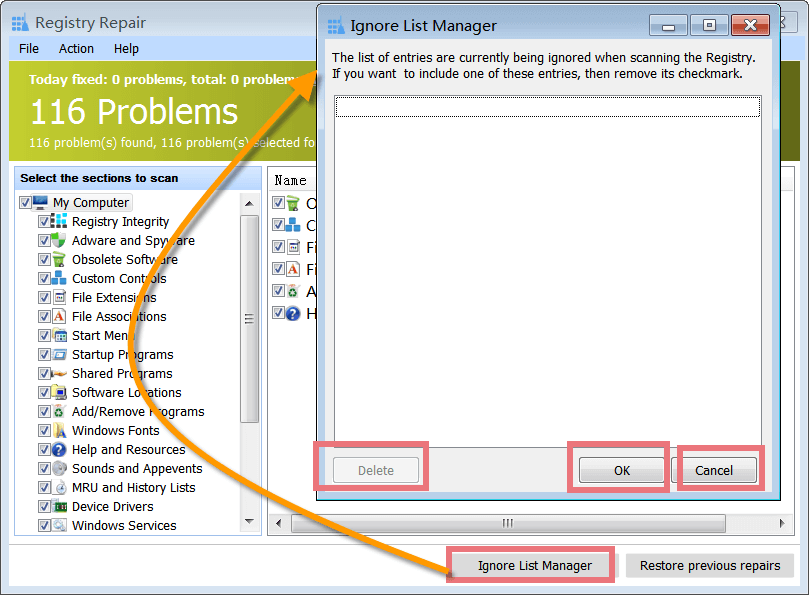
Registry cleanup and repair may cause instability or incompatibility problems to certain software updates. If you want to exclude an application from registry cleanup and repair, you can directly add it to the Ignore List. Applications included in Ignore List won't be scanned and changed during future scans when you are running Registry Repair. If the software update becomes more stable on performance, you can just remove it out of the Ignore List. Click "Ignore List Manager", find the needed entry, and then delete it.
Restore Previous Repairs
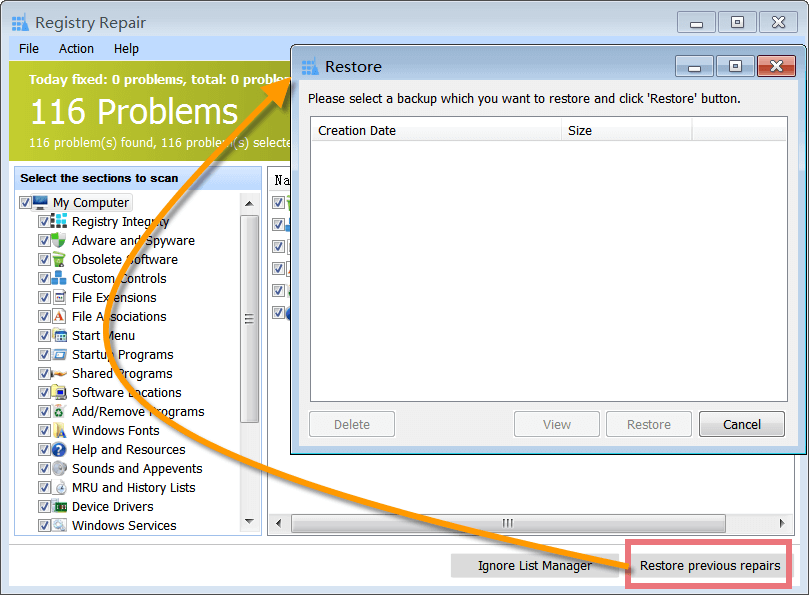
Whenever you clean the Registry, a corresponding Undo file is generated for any changes made. It can be used to recreate the deleted entries. Click "Restore previous repairs", select the file to be merged back to the registry and click the Restore button.
Export as a Text File
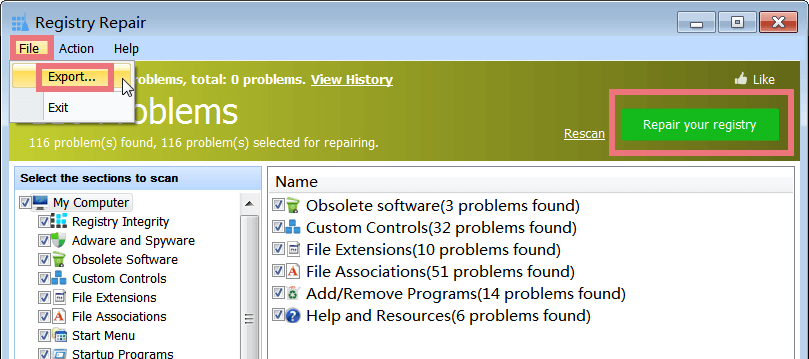
After scanning the registry, you can click the "Repair your registry" in the upper part of the main window. During this process, this cleaning tool will do the following: backup the registry and perform an action according to your selection. At the same time, by choosing "File -> Export ...", you can save the list as a text file before repairing it. If you have problems repairing the registry, you can find out the entry from the export log, and then exclude it in future registry cleanup and repairs.
Where find Registry Repair from Glary Utilities
Method 1
Method 2
 in Dock bar, Registry Repair will show in a new popup window.
Please note: if you want to add Registry Repair in the Dock bar, click in Dock bar, remove any icon by dragging it out of the Dock firstly, and then drag Registry Repair in.
FAQs and Support
Please visit http://www.glarysoft.com/support/faq/ for frequently asked questions and more help.
Online Support: contact at [email protected]
Copyright © 2016 Glarysoft. All rights reserved.
