
5 Photo Editing Tools for Better-Looking Images in 2026
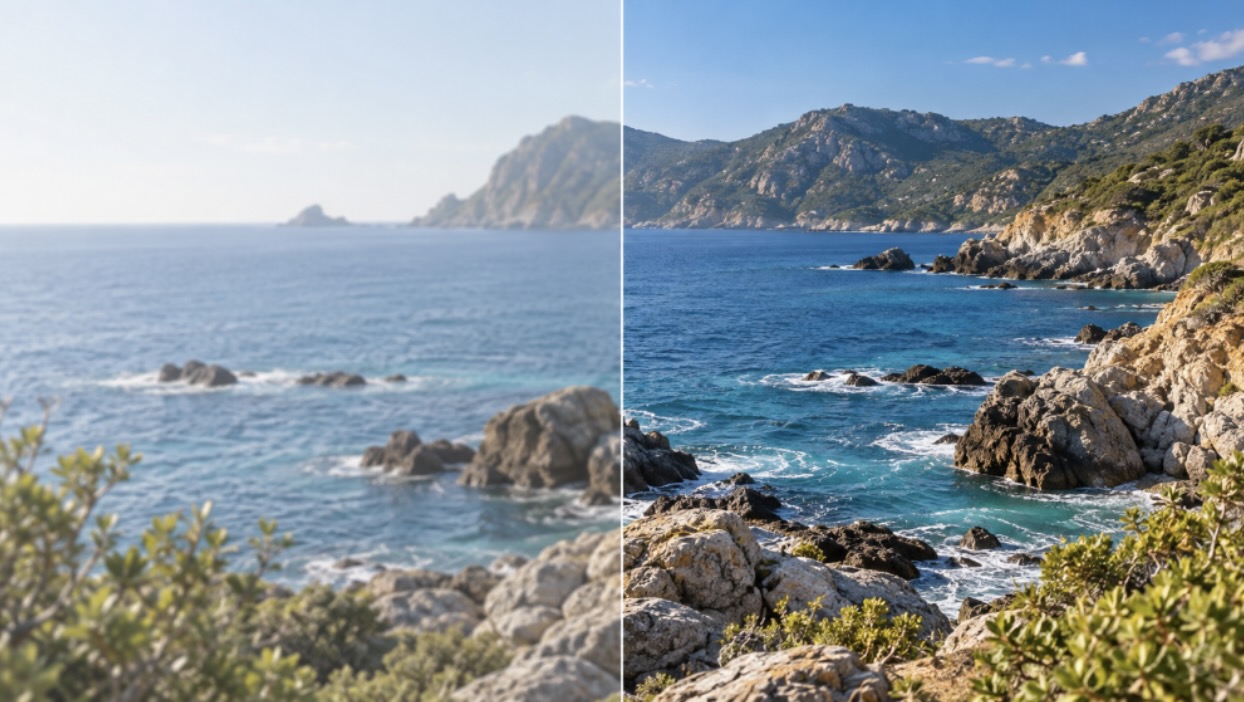
The same coastal photo before and after enhancement: softer detail on the left, clearer texture and color on the right.
A photo that looks soft on a laptop, washed out after a quick edit, or awkwardly cropped for a post can call for very different tools. Windows users may want a fast browser option, a built-in editor for simple adjustments, or a fuller desktop program with more hands-on control.
This list compares five options by their strongest use cases and trade-offs. BeautyPlus is the lead photo enhancer for detail and resolution; for a separate cleanup task, it also offers remove watermark from photo online free for images you own or have permission to edit.
Quick Comparison
| Tool | Best for | Notable capability | Platform | Pricing note |
|---|---|---|---|---|
| BeautyPlus | AI enhancement | Modes, presets, batch up to 50 images | Web | 2 free tries; paid plans from US$10/mo |
| Fotor | AI enhancement | Clarity, color, lighting, upscaling | Web | Basic free; paid price varies; see checkout |
| Microsoft Photos | Everyday edits | Crop, light/color sliders, filters | Windows | Free app; in-app purchases listed |
| Adobe Express | Photo + design | Enhancement sliders, crop/resize, text | Web, mobile | Free; Premium US$9.99/mo (US) |
| GIMP | Manual control | Retouching, layers, masks, curves | Windows, macOS, Linux | Free/open source |
1. BeautyPlus Image Enhancer
BeautyPlus is the most focused option when the source image needs more clarity or resolution. Its online enhancer offers selectable HD, UHD, and AI UHD modes, resolution choices, and image-type presets for subjects such as portraits, old photos, product shots, text, and concert images. The page also describes batch enhancement for up to 50 images, which may help when several related photos need a consistent starting point.
Key features
· Selectable HD, UHD, and AI UHD enhancement modes with resolution choices.
· Presets for portraits, old photos, product shots, text, concerts, and other image types.
· Batch enhancement for up to 50 images, according to the current product page.
Pros: Enhancement is the core task rather than one control buried in a general editor, and no desktop installation is required.
Limitations: A larger output does not guarantee that every reconstructed detail is faithful to the original. Fine hair, small lettering, and textured surfaces still need a close look.
Platform and pricing: Web browser. The free plan has limited use. BeautyPlus’s official photo-enhancer comparison article lists two free enhancements and paid plans from US$10 per month; its current Pro/Max plan features and final price can vary by region or billing route, so confirm the amount shown before subscribing.
2. Fotor AI Photo Enhancer
Fotor is another online-first choice for users who want automated improvement without opening a full desktop editor. Its enhancer page describes adjustments to clarity, color, lighting, and detail, along with 2× or 4× upscaling and batch processing for as many as 50 images. That makes it a practical candidate for batches of product, portrait, or social photos where speed matters more than detailed manual control.
Key features
· One-click enhancement covering clarity, color, lighting, and detail.
· 2× or 4× upscaling and batch processing, as listed on its official enhancer page.
· Browser-based workflow that returns an editable preview for review.
Pros: The short path from upload to preview can suit repeat or occasional enhancement tasks.
Limitations: Automatic results may not suit every source equally well. Inspect edges and textures for artifacts, especially in low-light or heavily compressed files.
Platform and pricing: Web browser. Basic is free forever with limited AI credits; Pro, Pro+, and Max are paid tiers. Fotor’s official pricing page currently does not expose a fixed public price in its page text. Advanced AI tools may use credits, so check the live checkout for the plan, price, and credit cost that apply to your region and chosen feature.
3. Microsoft Photos
For quick corrections on a Windows PC, Photos may be enough without installing a separate editor. Microsoft documents crop and rotate controls, preset aspect ratios, filters, and sliders for light and color; the app also lets users compare an adjusted image with the original and reset edits. These basics cover common fixes such as a dim exposure, a slightly warm color cast, or excess space around the subject.
Key features
· Crop, rotate, flip, and preset aspect ratios.
· Light and color sliders, filters, and an original-image preview.
· Local photos can be browsed without signing in to OneDrive, according to Microsoft.
Pros: It is already part of many Windows workflows and works well for modest edits to local files.
Limitations: Its scope is everyday editing rather than dedicated AI upscaling or the deeper controls of a full image-manipulation suite. Editor details may vary by Windows and app version.
Platform and pricing: Windows Photos app. The Microsoft Store lists the app as free and notes in-app purchases. Availability and interface details can vary by device and app version.
4. Adobe Express Photo Editor
Adobe Express combines straightforward photo adjustments with design-oriented tools. Its online editor lists crop and resize controls, filters, enhancement sliders for contrast, brightness, saturation, warmth, and sharpening, plus text and effects. That range suits someone preparing an image for a social post, flyer, or other small design, where editing and layout are part of the same job.
Key features
· Enhancement sliders for contrast, brightness, saturation, warmth, and sharpening.
· Crop, resize, filters, text, and effects in the same editor.
· Useful for placing an edited photo into a social post or simple graphic.
Pros: Photo correction and basic design can happen in one workspace.
Limitations: The broader design workspace may be more than necessary for a single tonal correction. Account and feature requirements can vary.
Platform and pricing: Web and mobile. Adobe Express Free is US0; Adobe lists Premium at US9.99 per month on its US pricing page. Other regions may show local pricing and terms.
5. GIMP
GIMP is a free, open-source desktop editor for Windows, macOS, and Linux. The project describes it as software for photo retouching, image composition, and authoring, while its official tutorials cover layer manipulation, layer masks, and color curves. That makes it a flexible option when a user wants controlled, manual changes rather than relying on a one-click enhancement preset.
Key features
· Photo retouching and image composition in a desktop editor.
· Layer, layer-mask, and color-curve workflows covered by official tutorials.
· Cross-platform availability and a free, open-source license.
Pros: It provides broad manual control without a subscription requirement.
Limitations: The deeper toolset takes more time to learn and is not the quickest route to an automatic resolution boost.
Platform and pricing: Windows, macOS, and Linux. Free, open-source software with no subscription fee.
Final Thoughts
These tools serve different needs, from quick automated enhancement to everyday corrections, design, and hands-on editing. A dedicated enhancer can help clarify a soft image or prepare a small file for a larger display, while a general editor is more useful for cropping, color correction, layout, or detailed manual work. Upscaling cannot restore every detail that was never captured, so faces, fine text, and repeating textures deserve a close look at full size. Before choosing, test a representative photo, compare the result with the original, and check current plan limits and export options. The best fit is the one that improves the images in your actual workflow without adding steps you do not need.
