
Why Is My VPN So Slow on Windows 11? 7 Easy Fixes
You connect your VPN on Windows 11, open a website, and suddenly everything feels slower. Pages take longer to load, videos start buffering, and downloads that usually finish in minutes seem to drag on.
It's frustrating, especially when your regular internet connection works perfectly well.
A VPN can affect connection speed, but the difference depends on several factors, including server location, network conditions, and the protocol handling your traffic.
The good news is that most speed problems are fairly easy to investigate. Whether you're trying a free VPN service for the first time or using a VPN regularly, a few simple checks can help you identify what's slowing things down.
Here's what to look for and how to get your connection running more smoothly.
Does a VPN Slow Down Your Internet?
Yes, a VPN can reduce your internet speed to some extent.
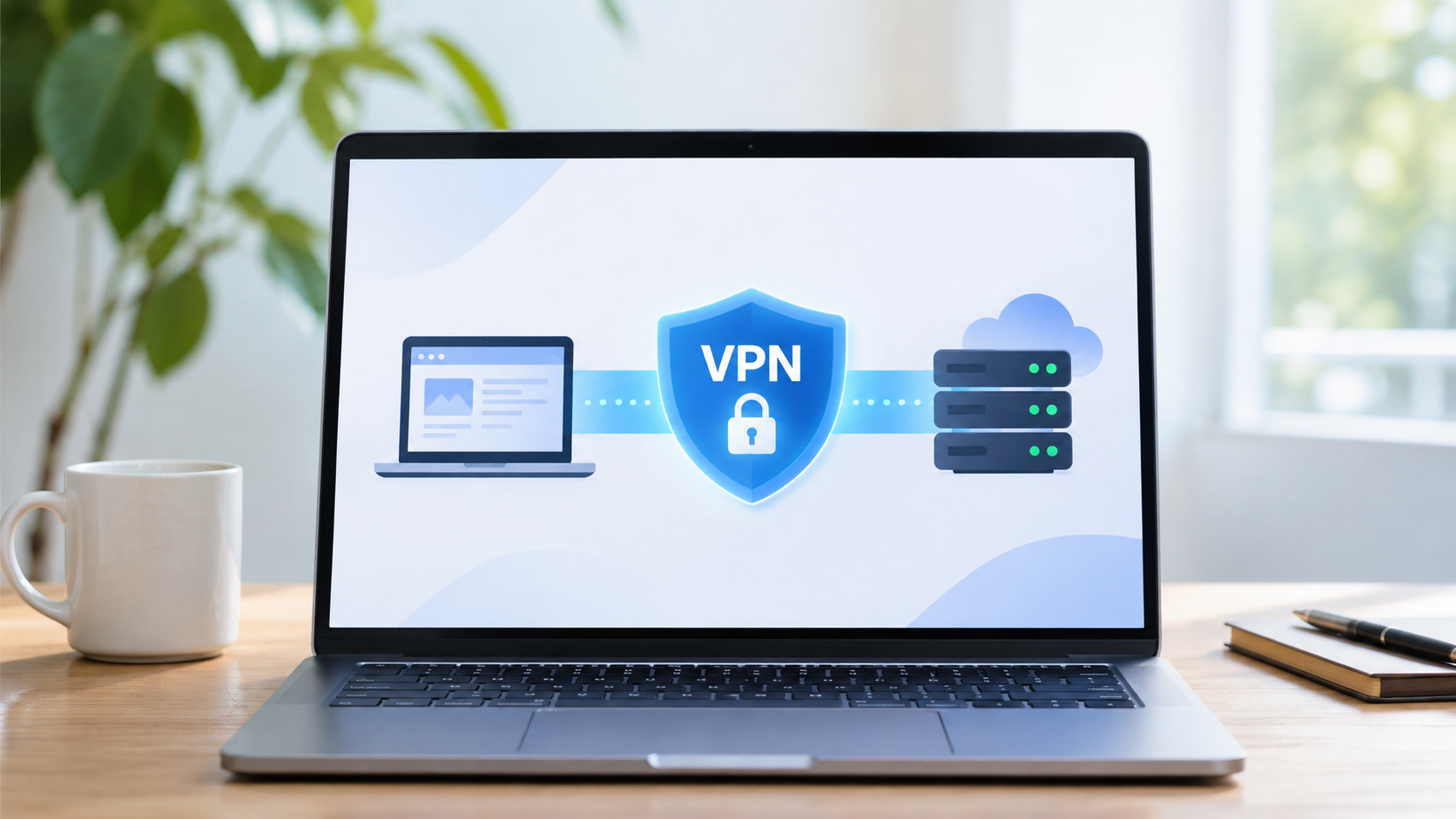
When you connect to a VPN, your internet traffic travels through an encrypted tunnel to a VPN server before reaching its destination. This adds an extra step to the normal connection process.
The VPN also encrypts outgoing data and decrypts incoming data, which requires some processing power.
However, the impact isn't always noticeable.
On a fast connection with a nearby VPN server, browsing websites, watching videos, and downloading files may feel almost the same as usual.
Problems become more obvious when the VPN server is far away, your network is unstable, or too many users share the same server.
Understanding where the slowdown comes from makes troubleshooting much easier.
Why Is Your VPN So Slow on Windows 11?
Several factors can affect VPN performance. Some are related to the VPN connection itself, while others come from Windows settings or your local network.
1. You're Connected to a Distant VPN Server
Server distance is one of the biggest factors affecting VPN performance.
Your data needs time to travel between your computer and the VPN server. The farther it travels, the more latency you may experience.
For example, connecting from London to obtain an Australia IP means routing your traffic through an Australian VPN server. That longer journey can increase response times compared with using a nearby server.
This is especially noticeable during online gaming, video calls, and other activities that depend on quick responses.
For everyday browsing, choosing a server closer to your physical location is usually a good starting point.
2. The VPN Server Is Overloaded
VPN servers handle traffic from multiple users.
When a server becomes busy, available bandwidth and computing resources may be stretched, leading to slower downloads or inconsistent performance.
This can happen during peak usage hours, particularly on popular server locations.
If your VPN offers multiple servers, switching to another one in the same country may improve performance.
3. Your VPN Protocol Isn't Ideal for Your Network
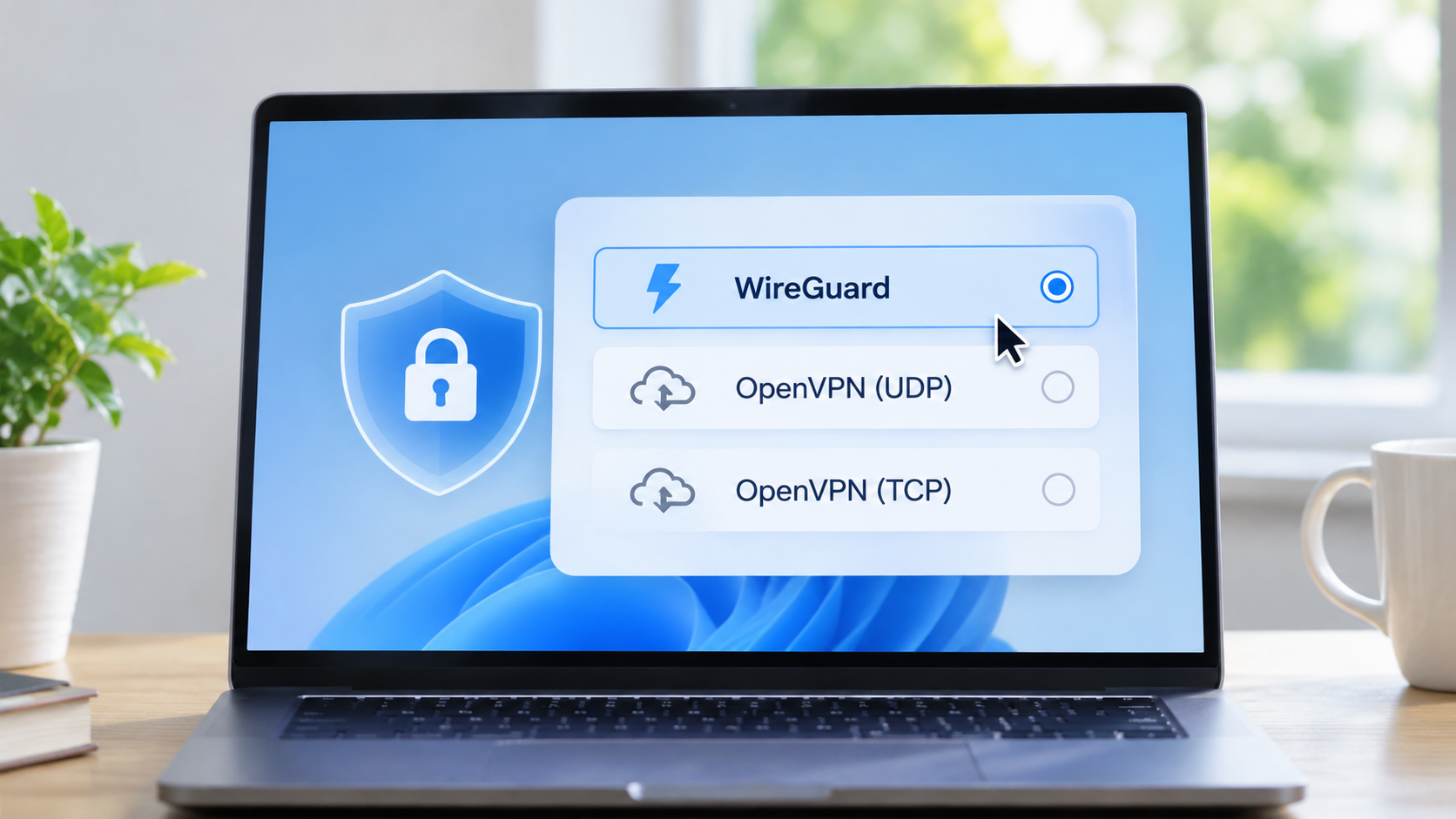
VPN protocols determine how your data moves through the encrypted connection.
Some protocols prioritize efficiency, while others are designed around compatibility with different network conditions.
For example, WireGuard is known for its lightweight design and strong performance. OpenVPN can use UDP or TCP, which may behave differently depending on the network.
If your VPN application supports several protocols, trying another option may help you find a more stable connection.
4. Your Wi-Fi Connection Is Unstable
Sometimes the VPN gets blamed for a problem that starts with Wi-Fi.
Weak signals, interference from nearby devices, and crowded wireless networks can all affect internet performance.
A VPN adds another connection layer, so existing network problems may become more noticeable.
If your internet speed changes significantly depending on where you sit, check your wireless connection before adjusting VPN settings.
5. Background Applications Are Using Bandwidth
Windows 11 regularly runs tasks in the background.
Cloud synchronization, software updates, game downloads, and large file transfers can consume a substantial amount of bandwidth.
If several applications are competing for the same connection, your VPN may appear slower even when it's functioning normally.
How to Fix a Slow VPN on Windows 11
Start with the simplest checks before changing advanced settings. You can usually narrow down the problem without installing additional tools.
Step 1: Compare Your Internet Speed With and Without the VPN
First, find out how much your connection changes when the VPN is enabled.
- Disconnect your VPN.
- Open a speed testing website, such as Speedtest by Ookla.
- Record your download speed, upload speed, and ping.
- Connect to your VPN and repeat the test.
- Compare the results.
Use the same testing service and, where possible, the same test server.
A small difference is common. A significant drop suggests that the VPN connection, selected server, or protocol deserves closer attention.
Run the test more than once to account for normal network fluctuations.
Step 2: Connect to a Nearby VPN Server
Open your VPN application and check the selected server location.
If you're connected to a country far from your current location, try a closer server where your VPN plan allows it.
Many VPN applications also provide an automatic or fastest-server option. This is useful when you don't need an IP address from a particular country.
After reconnecting, repeat your speed test and check whether websites respond more quickly.
Step 3: Try a Different VPN Protocol
Open your VPN application's settings and look for the protocol selection menu.
The location of this setting varies between applications. Some VPNs select protocols automatically, while others let you switch manually.
If WireGuard or another performance-focused protocol is available, test it against your current configuration.
Reconnect after changing the protocol and compare the results.
Keep the option that provides the best combination of speed and connection stability on your network.
Step 4: Restart Your VPN and Network Connection
Temporary connection problems can sometimes be resolved with a fresh connection.
Disconnect your VPN, close the application, and reopen it.
If performance remains poor, restart your Wi-Fi connection or reboot your router.
You can also restart Windows 11 to clear temporary software problems.
This is particularly useful if your VPN was working normally earlier but suddenly became slow.
Step 5: Check Your Windows Network Drivers
Outdated or malfunctioning network drivers can affect connection stability.
To check your drivers:
- Right-click the Start button and select Device Manager.
- Expand Network adapters.
- Right-click your Wi-Fi or Ethernet adapter.
- Select Update driver.
- Follow the instructions to search for available drivers.
You can also check your computer manufacturer's website for the latest compatible network drivers.
Restart your computer after installing an update.
Step 6: Reduce Background Network Activity
Press Ctrl + Shift + Esc to open Task Manager.
Under the Processes tab, select the Network column to sort applications by network usage.
Look for software consuming large amounts of bandwidth, such as cloud backup services, download managers, or game launchers.
Pause unnecessary downloads and synchronization tasks, then test your VPN again.
Avoid closing system processes you don't recognize. Focus on applications you opened or installed yourself.
Step 7: Test an Ethernet Connection
If you're using Wi-Fi, connecting your computer directly to the router with an Ethernet cable can help identify wireless interference.
Ethernet connections often provide more consistent performance, especially when the Wi-Fi signal is weak.
Run another speed test while connected through Ethernet.
If your VPN becomes noticeably faster, the wireless connection may be the main source of the problem.
Check Background Apps and Windows 11 Settings
Windows 11 includes several features that can affect network usage.
For example, Windows Update may download files automatically, while OneDrive can synchronize documents and photos in the background.
You can check for update activity by opening Settings > Windows Update.
To review background network usage, go to Settings > Network & internet > Data usage.
This shows which applications have consumed data over the selected period. It can help you identify unusually active programs.
Also make sure your VPN application is updated. New versions may include performance improvements, protocol updates, and fixes for Windows compatibility issues.
Choose a VPN That Fits Your Needs
If your VPN remains slow after troubleshooting, consider whether the service matches how you use the internet.
Server availability, connection protocols, and network capacity all influence performance.
For regular browsing, an automatically selected nearby server may be sufficient. Streaming, gaming, and large downloads can benefit from stable connections and servers with adequate bandwidth.
Pay attention to how consistently the VPN performs throughout the day, rather than focusing on a single speed test.
A VPN that feels responsive during your normal activities is often more useful than one that produces impressive results only under ideal conditions.
FAQs
Why Is My VPN Fast on My Phone but Slow on Windows 11?
Your phone and computer may use different VPN protocols, server locations, or network connections.
Background applications and network drivers on Windows can also affect performance. Compare both devices on the same Wi-Fi network to narrow down the cause.
Can a VPN Improve Internet Speed?
Sometimes. If your internet provider is slowing specific types of traffic, a VPN may help by changing how that traffic is routed.
In most situations, however, VPN encryption and routing introduce some overhead.
Why Does My VPN Keep Disconnecting on Windows 11?
Unstable Wi-Fi, network driver problems, server issues, or conflicting security software can interrupt a VPN connection.
Try another server, update your VPN application, and check whether your regular internet connection is stable.
Final Thoughts
A slow VPN on Windows 11 often comes down to server distance, network congestion, protocol selection, or background applications.
Start by comparing your speed with and without the VPN. Then try a nearby server, check your network connection, and review the applications using your bandwidth.
Working through these checks one at a time makes it easier to identify the cause and get back to a smoother connection.
